
🕵🏻How to set up computer security for your parents🔐

If you want to tighten up your parents’ home cybersecurity as much as possible, you’ve come to the right place. After all, you’re no doubt the family IT person, and first point of contact if trouble arises.

Consider a Chromebook. If someone is looking for a new computer system for regular, non-demanding purposes, such as browsing, social media, and email, you can help with recommendations. For such a person, who isn’t invested in heavy gaming, a Chromebook would be a good option, as it will save them some money and can perform all those functions, plus allows them to play browser-based games if needed.

Turn on auto-update. Installing software on a system usually comes with the task of having to keep it up-to-date. Therefore, any software program, operating system or browser that has an option to auto-update should be set to do this. We know this isn’t always recommended in a work environment, but for the computer illiterate person in their own home, it’s perfect. One less thing to worry about.

Configure their security software. In addition, selecting security software that allows users to minimize notifications to only dire warnings will keep users from getting confused. Notifications coming from programs can have strange effects on the less computer savvy for several reasons:

  • They don’t understand to which program the messages belong, which takes away the context for them
  • The text in the notifications is designed to be short, which means they’re not always maximized for clarity
  • Technical terms used in the notification may be unfamiliar

When there are too many notifications, people can get fatigued. Most will simply want the pop-ups to disappear, no matter what they have to click on to accomplish this. So, any software that can be set to only issue a warning when something is really amiss deserves a big plus.

Disable Remote Desktop. If you’re dealing with a Windows computer, disable Remote Desktop. Remote Desktop is sometimes used by scammers in things like technical support scams, so if you don’t need it you may as well turn it off. You can do this in Settings. Here’s how to do it in Windows 10:

  • Launch the Settings app. (shortcut Win + I)
  • Under the System section, scroll down and click on the Remote Desktop option.
  • Then, click on the toggle next to the Remote Desktop option to turn it off.
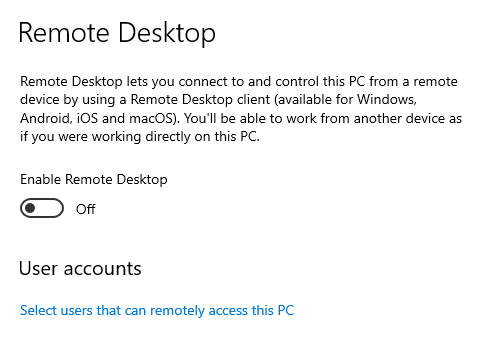
  • Windows will prompt you to confirm your decision.
  • Click on the Disable button and exit the settings app.

Use an easy to maintain blocklist or firewall. This can keep a lot of harm at bay. Alternatively, make use of security software that includes a web protection module. (We use Malwarebytes)

Configure the router/modem accordingly. Make sure to configure the home router and access points with unique usernames and passwords and do not use the default ones that come with the equipment. Many botnets will attempt to take over such devices by trying default credentials.

There are some other basic settings that can enhance the security of the home router without hindering the users:

  • Turn off remote management if enabled.
  • Use WPA2 or WPA3 (if available) encryption on Wireless routers.

Hang up, close the tab, and call your bank. A Dutch bank ran a very effective campaign that advised customers to “Hang up, close the tab, and call your bank.” This is very easy to remember and very effective at the same time. Tell your parents to remember that phrase when they see “urgent” warnings online or get cold calls from Microsoft, their bank, or any other entity that seeks access to personal or financial information. It’s good to teach your parents they shouldn’t trust that friendly voice with a concerned tone, if they can’t verify their identity. The same is true for text and chat messages. Even if the sender claims to be you on your new phone.

🦠 Virus Removal Tools 🦠

Here’s some of the best virus & malware removal tools, And they are all FREE!

Norton Power Eraser LINK Yes, I’m not the biggest fan of Norton. But this should be your first line of attack if you think your system may be infected.


Kaspersky KVRT LINK Next up would be this Kaspersky tool. Though the company may be under a bit of scrutiny, KVRT is a mighty killer of nasties!


Hitman Pro LINK The third line of attack would be Hitman Pro. Owned by the makers of “Sophos” AV.

(You have to fill out a little reg’ form to access this download, but you don’t have to be too honest!)


Adware Cleaner LINK After Hitman, run this little bit of magic to help cleanse anything that may still be hiding.


Malwarebytes LINK Once all the other scans have completed, Install Malwarebytes as a “Trial” version to give your system one last scan.


One of the best places that I know for Virus Removal tutorials etc is “Bleeping Computer” Click on the link link to take you there: https://www.bleepingcomputer.com/

If after running that little lot you still feel uneasy, give us a shout.

Printing Documents, Menus & Photos, and Virus Removal -Done!

After yesterday’s rail strike, today’s early trains were cancelled, so I didn’t get to work until nearly 11am. However, I was ready to get stuck into some printing jobs. There was also a tricky virus getting up to mischief.

Thankfully, none of my clients needed me first thing!


Photo Printing on Glossy Paper

First little job of the day was a straightforward duplication of a few photos onto some nice 260gsm glossy paper.


Document Printing & Full Bleed Work

Next up was an urgent print job for a new client. It was a simple single print of a document on 80gsm standard paper.

However, the other document had a solid blue background and also needed to be full bleed (borderless). As standard paper will not hold that amount of ink without bleeding through to the other side and looking fuzzy, I used a nice smooth 120gsm matt paper instead. This can accept high-resolution prints easily.


Menu Updates for La Terrazza

Then Paolo, the owner of La Terrazza Italian Restaurant here in town (damn good food!), popped in to update his menus.

After about 15 minutes of editing, they were ready for proof-reading and printing. He had to run off and get prepped for tonight, so I’ll drop them off once I’ve closed for the day.


Virus Removal & System Clean-Up

Last job for today was a virus scan of a local hotel’s main reception PC. This had to be done sharpish, as all the other PCs in the hotel depend on it.

There were a few traces of malware and the remnants of a Trojan Horse that had snuck aboard. I upgraded Malwarebytes from the free version to the Premium paid version to enable shielded protection. That should minimise any more nasties!

I finished up with a couple of Windows updates after a quick service, and we were good to go in two hours flat.


Time for a Cuppa ☕

Dodgy Battery & Quick Service

Now I’ve got the print jobs out of the way, it’s time for some computer repairs. Today, it’s an HP EliteBook battery repair.

One of my very first clients is back with a laptop that won’t hold it’s charge.

It’s a HP EliteBook 840 that he bought refurbished from Amazon, on my advice, about 4 years ago.

I really like the EliteBooks. So easy to work on, as the back panel just unclips in a few seconds. This way, you have access to pretty much everything.

As I’ve had a lot of problems with after-market batteries in the past, I only supply OEM batteries. These can cost £75-£150+. However, as he’s a pensioner, it’s a bit pricey for his budget. So I pointed him to the correct battery on Amazon for just £25. He’ll bring it back next week for me to fit.

The service went easily, as it’s got 16Gb of RAM, an i5 CPU & fast SSD.

A quick virus scan, bunch of Windows updates, clean-up of start-up programs, disk clean-up & optimise the SSD, and it’s ready to collect in about 45mins.

Modern computers, with solid state drives are so cheap to service. Last week, an almost identical machine only had 4Gb of RAM, a Celeron CPU and a traditional mechanical HDD. It took me nearly 3hrs to do the same job.

🛠️ Expert Repairs Without the “Big Brand” Price Tag

There is a lot of life left in older machines if they are treated right! This HP EliteBook is a perfect example of how a quick, professional service and an honest approach to parts can keep you up and running for years. This can be done without breaking the bank.

Whether your laptop is struggling to hold a charge or has become “painfully slow,” we provide straightforward, jargon-free support. Our goal is to get it back to its best.

Why bring your tech to Bluesdigital?

  • Honest Advice: If a part is too pricey, we’ll help you find a reliable, budget-friendly alternative.
  • Fast Turnaround: Modern SSD-based machines can often be serviced and optimised in under an hour!
  • Local Trust: We look after your tech so you don’t have to worry about “big brand” upsells.

Your Local Digital All-Rounder 💻🔧

From reviving tired laptops to building affordable web design in Mid-Wales, we make technology work for you. If your computer needs a “spring clean” or a hardware boost, pop in and see us at Frolic House.

Get your tech sorted today: ☎️ Call: 01686 610 106 📱 Text: 0783 222 7823 📍 Visit us: Frolic House, Newtown (Between the Medical Practice & Driving Test Centre)