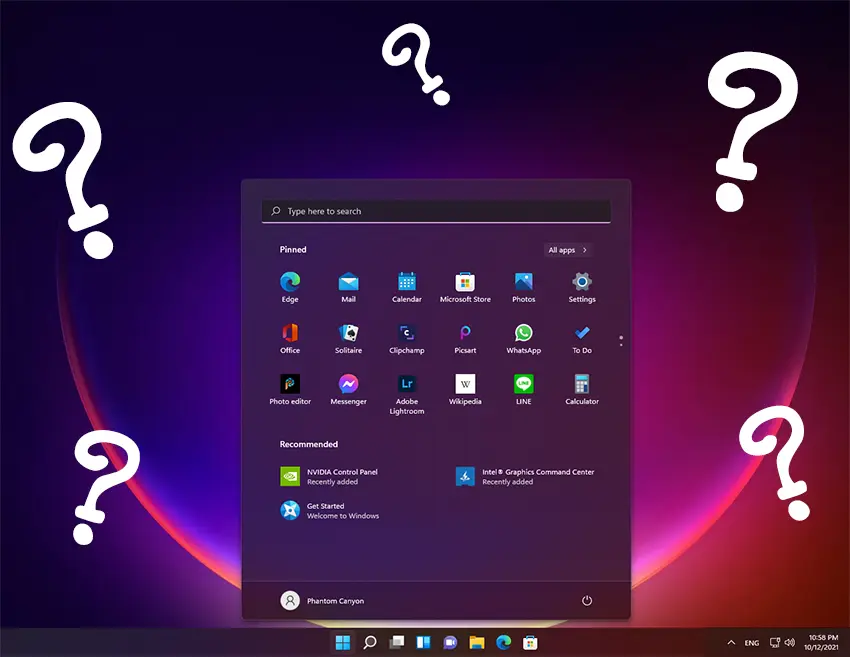
Had a couple of calls about folks not being able to make a shortcut as easily in Windows 11 as it was in 10 or 7.
Now that a lot of “Apps” are being delivered via Microsoft Store, the old “Right Click” and send shortcut to desktop does not work for these and other built-in Windows apps. Some you can still use the right click option of “Open File Location”. With this, you can make a shortcut from there. However, that option is also being phased out. This leaves us shortcut junkies without a desktop full of icons!
There’s a couple of easy ways to access the main Applications folder in 11, where everything is hiding.
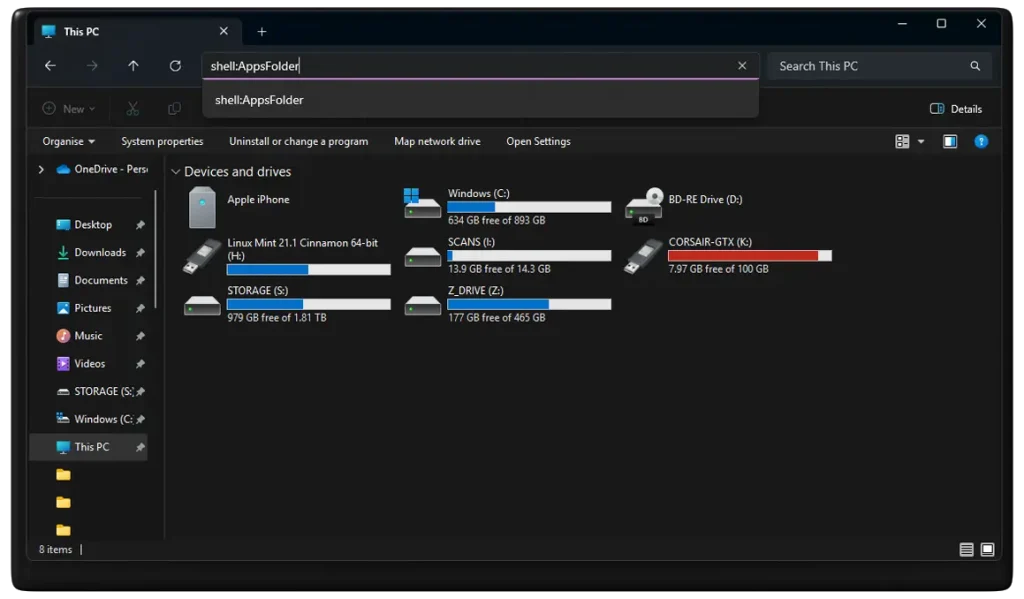
Open “File Explorer”, “Computer” or any folder on your pc and type shell:AppsFolder in the address bar & hit enter.
Or…
Hold down the Windows key+R then type shell:AppsFolder into the Run window and click Ok. Then you will be able to make a shortcut for any program on your PC.

How to Create a Shell:AppsFolder Shortcut :
You can also create a Shell:AppsFolder shortcut to easily open the Applications folder to view all apps on your Windows 10/11 computer.
Right-click on the Desktop and select New -> Shortcut.
In the Create Shortcut window, type Explorer Shell:AppsFolder and click Next.
Type a name for the shortcut like Apps or Applications and click Finish. This will create a shortcut for the Windows Applications folder.
Then you can double-click on the new shortcut to open the Applications folder to view all apps in your system.
For more computer services, pop in to see us at Frolic House ( between Newtown Medical Practice and Newtown Driving Test Centre )| Call 01686 610 106 | Message 0783 222 7823