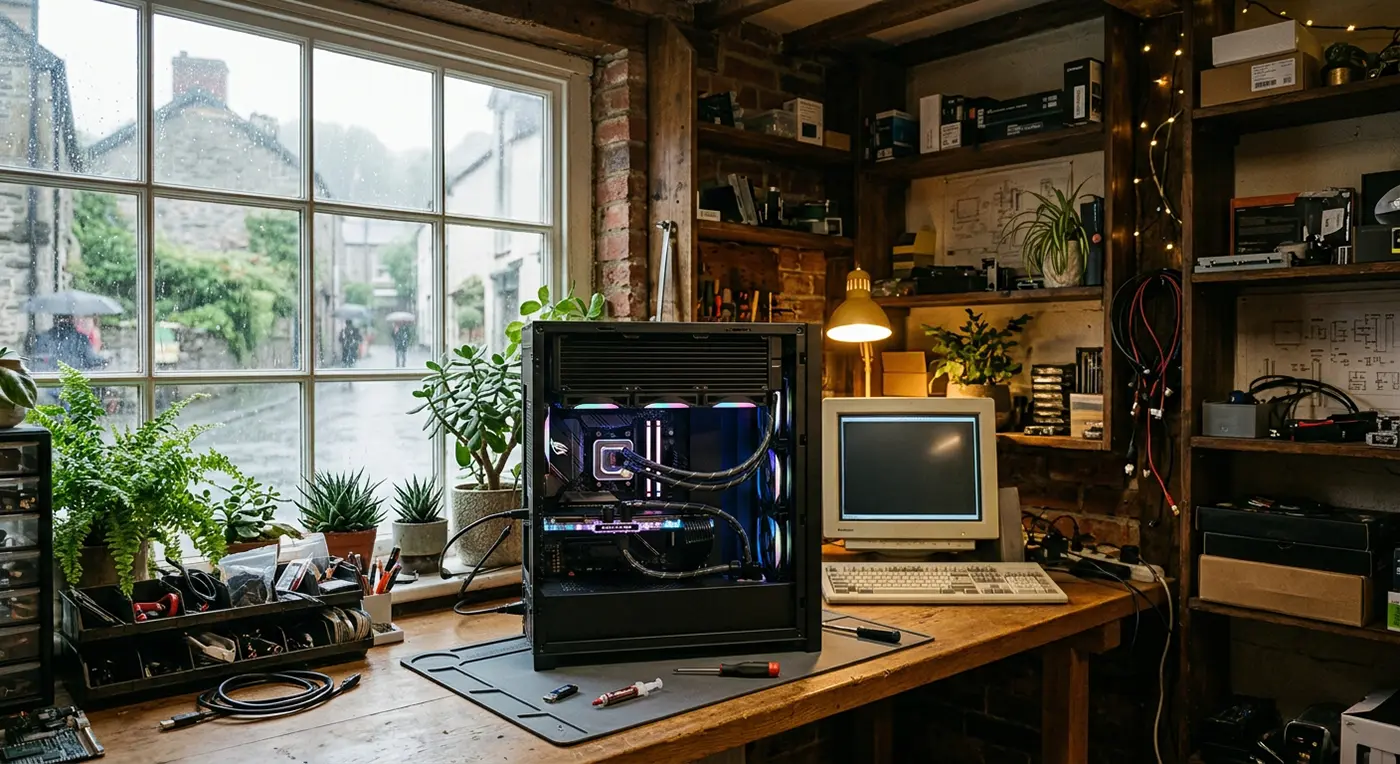
One of our neighbours over on Frolic Street popped his head around the door with a quick request: could we update the BIOS and install an upgraded CPU while he nipped out to do some shopping?
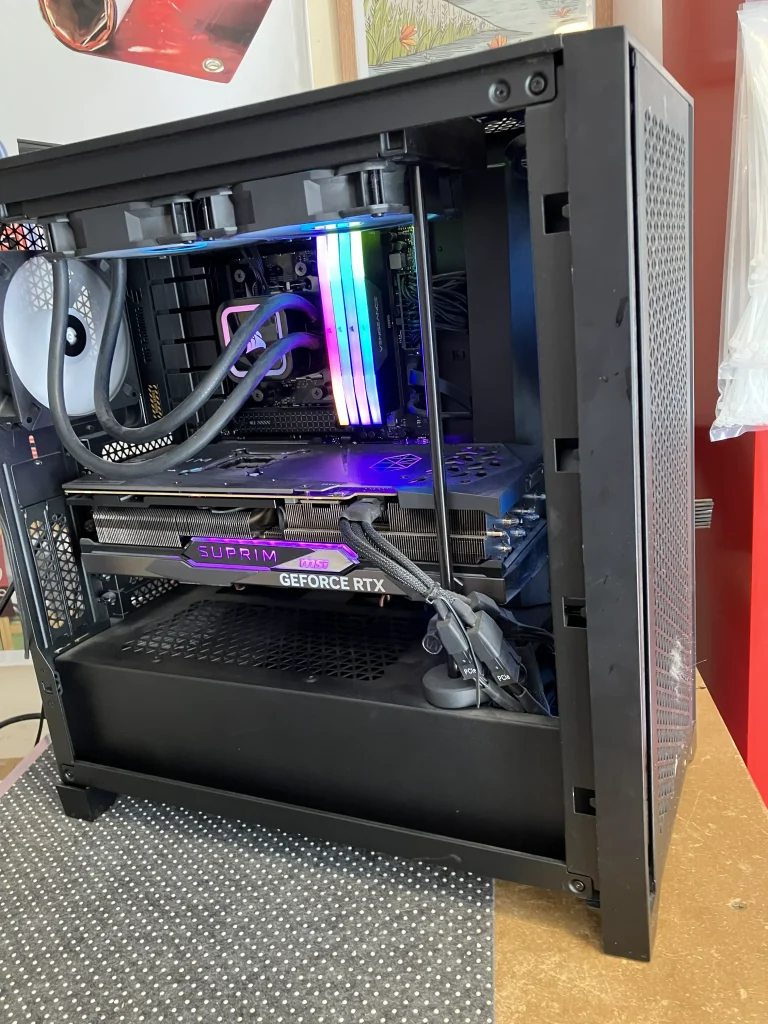
Easy enough… except this particular custom PC had a rather substantial liquid-cooling setup inside, complete with a radiator that made getting to the processor a little more interesting!
Here’s a behind-the-scenes look at how we tackled the upgrade and got this high-performance PC back up and running.
A Straightforward Upgrade… With a Few Obstacles
The job itself wasn’t complicated, but working around a large All-In-One (AIO) liquid cooler in a fairly cramped case called for a little patience and careful handling.
1. Motherboard BIOS Update
First, we updated the motherboard BIOS to a version that supports the new processor. Doing this before removing the existing CPU meant the motherboard was ready to recognise the new chip once the upgrade was complete.
2. Careful Dust Removal
With the PC open, we cleared away the surrounding dust from the socket area and radiator. A clean working area is particularly important when you’re about to have the CPU socket exposed.
3. Making Room Around the AIO Cooler
The liquid cooler and its radiator took up quite a bit of space, with some very snug cable routing around the assembly. We carefully worked around it. We moved the cooler block out of the way without disturbing the rest of the cooling system.
4. CPU Swap & Fresh Thermal Paste
With the old processor removed, we cleaned away the existing thermal compound before installing the new CPU. Fresh thermal paste was then applied, the cooler was carefully remounted and everything was checked before powering the system back up.
All wrapped up in just an hour and a half — even with that rather large liquid cooler getting in the way!

🌧️ What Does Rain Have to Do With Your PC?
Ever noticed how refreshing that first rain feels after a heatwave? 🌧️☀️
Water is remarkably good at carrying heat away. In fact, water can carry around four times more heat than the same weight of air. 💧🔥
That’s one reason liquid cooling is so effective. The coolant picks up heat from the processor and carries it away to the radiator, where that heat can be released.
It’s basically the same principle as a car’s cooling system — just working inside your PC instead of under the bonnet!
Built With Reliability in Mind
At Bluesdigital, even a quick drop-in upgrade gets careful attention.
Whether it’s a CPU swap, PC maintenance, BIOS update or a completely bespoke custom build, we check the important details — from thermal paste and cable routing to cooling and system stability — before the machine goes back to its owner.
Frequently Asked Questions
Is it safe to upgrade a CPU with an existing liquid cooler?
Yes. An existing liquid cooler can normally be reused with a new processor, provided it is compatible with the CPU and is carefully removed and correctly remounted. The old thermal compound should be cleaned away and fresh thermal paste applied before reinstalling the cooler.
Why might a BIOS update be needed before installing a new processor?
A motherboard may need a newer BIOS version to support a processor released after the board was manufactured. Updating the BIOS beforehand can ensure the motherboard has the firmware support it needs for the new CPU.
PC Maintenance and BIOS Updates in Newtown & Mid Wales
From PC maintenance and BIOS updates to CPU upgrades, cooling issues and completely bespoke custom builds, Bluesdigital can help keep your computer running reliably.
We’re based on Frolic Street in Newtown, Powys, and work with customers across Mid Wales.
If your PC needs an update, upgrade or a bit of attention, give Bluesdigital a shout.