If you want to tighten up your parents’ home computer security as much as possible, you’ve come to the right place. After all, you’re no doubt the family IT person, and the first point of contact if trouble arises.
Consider a Chromebook
If someone is looking for a new computer system for regular, non-demanding purposes, such as browsing, social media, and email, you can help with recommendations. For such a person, who isn’t invested in heavy gaming, a Chromebook would be a good option, as it will save them some money and can perform all those functions, plus allows them to play browser-based games if needed.
Turn on auto-update
Installing software on a system usually comes with the task of keeping it up-to-date. Therefore, any software program, operating system or browser that has an option to auto-update should be set to do this. We know this isn’t always recommended in a work environment, but for those who just want things to work in their own home, it’s perfect. One less thing to worry about.
Configure security software
In addition, selecting security software that allows users to minimise notifications to only critical warnings will help prevent confusion. Notifications coming from programs can be confusing if you don’t live and breathe tech.
- They don’t understand to which program the messages belong, which takes away the context for them
- The text in the notifications is designed to be short, which means they’re not always maximised for clarity
- Technical terms used in the notification may be unfamiliar
When there are too many pop-ups, notification fatigue sets in, and it’s easy to just click anything to make them go away. Setting software to only flag critical warnings keeps things simple and stress-free.
Disable Remote Desktop
If you’re dealing with a Windows computer, disable Remote Desktop. Remote Desktop is sometimes used by scammers in things like technical support scams, so if you don’t need it you may as well turn it off. You can do this in Settings. Here’s how to do it in Windows 10:
- Launch the Settings app. (shortcut Win + I)
- Under the System section, scroll down and click on the Remote Desktop option.
- Then, click on the toggle next to the Remote Desktop option to turn it off.
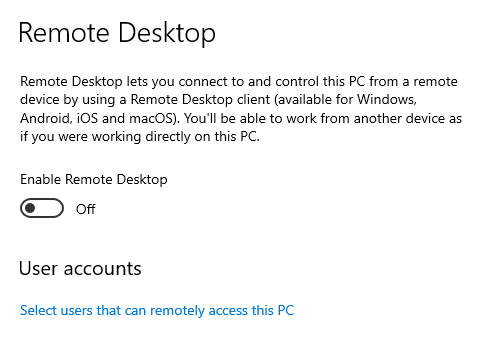
- Windows will prompt you to confirm your decision.
- Click on the Disable button and exit the settings app.
For Windows 11:
- Launch the Settings app (shortcut Win + I).
- Select System from the left-hand menu, then click on Remote Desktop on the right.
- Toggle the switch next to Remote Desktop to Off and confirm your choice.
Use an easy to maintain blocklist or firewall
This can keep a lot of harm at bay. Alternatively, make use of security software that includes a web protection module. (We use Malwarebytes for virus and malware removal)
Configure the router/modem accordingly
Make sure to configure the home Wi-Fi router and access points with unique usernames and passwords, and do not use the default ones that come with the equipment. Many botnets will attempt to take over such devices by trying default credentials.
There are some other basic settings that can enhance the security of the home router without hindering the users:
- Turn off remote management if enabled.
- Use WPA2 or WPA3 (if available) encryption on Wireless routers.
Hang up, close the tab, and call your bank
A Dutch bank ran a very effective campaign that advised customers to “Hang up, close the tab, and call your bank.” This is very easy to remember and very effective at the same time. Encourage your parents to remember that phrase when they see “urgent” warnings online or get cold calls from Microsoft, their bank, or any other entity that seeks access to personal or financial information. Scammers are experts at sounding friendly and concerned, so it’s a great reminder for parents (and all of us!) that it’s always safest to hang up and verify who you are speaking to directly. The same is true for text and chat messages. Even if the sender claims to be you on your new phone.
We’re here to help (so you don’t always have to!)
We know that sometimes parents can feel a bit conscious about constantly asking their kids for tech help, or they might want a second opinion when they see something suspicious online. Why not save our numbers or pop them onto a ‘useful contacts’ list on the fridge? They can always reach out to us directly when they’re concerned:
- Landline: 01686 610106
- Mobile: 0783 222 7823