You may have noticed some changes to our website — including our new pick-up and drop-off service! No more taking time out of work, family, or leisure to get your PC or laptop running smoothly. Just pick a time, and we’ll handle the rest — safe, fast, and hassle-free.
If you’re running a service-based business, your website is more than just a digital business card—it’s your most valuable employee. But if it’s missing one key feature, like a Booking Form, you could be losing clients without even knowing it.
Here’s why adding a booking form to your website can be a game-changer for your business—and how it can save you time, reduce stress, and stop potential clients from slipping through the cracks.
It Makes Booking Simple and Instant
We live in an on-demand world. People don’t want to wait for a callback or write a long email just to schedule an appointment. A booking form lets visitors take immediate action—whether it’s 2 PM or 2 AM.
The easier you make it to book with you, the more bookings you’ll get. It’s that simple.
It Keeps You Organised (No More Scrambling)
Tired of chasing down client details or losing track of appointments? A booking form gathers everything you need upfront: names, dates, services, preferences—all in one place.
Many booking tools also sync directly with your calendar, send automated reminders, and update your availability in real time. That means fewer no-shows and no double-bookings.
It Filters for Serious Inquiries
Let’s face it—your time is valuable. A booking form acts as a gentle gatekeeper, cutting out endless DMs and vague “I might be interested” messages.
You can add custom fields to ask about budget, service type, or timeline—so you focus your time on leads that actually fit what you offer.
It Makes You Look Legit
A well-designed booking form tells clients: “I’m professional, I’ve got systems, and I take your time seriously.”
That trust and credibility can go a long way—especially if you’re in a competitive industry where first impressions matter.
It Saves You Hours Every Week
Manual scheduling eats up time. Back-and-forth emails. Calendar coordination. Missed messages. Multiply that by every client—and it adds up.
With a booking form, much of the work is done automatically. Less admin for you, more freedom to focus on delivering your service (or just breathe).
Today’s been one of those days — where things just don’t go to plan. A handful of jobs, each with their own unexpected challenges. Even with all the experience, care, and effort I bring to work, it’s been a bit of a grind. It’s important to remember how days like these can impact our mental health.
At Bluesdigital, I take pride in delivering a high standard of service. That commitment doesn’t change — even when the day doesn’t go my way. And while it’s part of running a business, it can still be enormously frustrating.
I’m sharing this to acknowledge that these days happen. If today’s felt like a bit of a slog for you, this is a quiet nod to say: you’re not alone. Maybe reaching out about a hard day for me can bring about a little ease for you. Just talking about mental health can sometimes lighten the load.
Thank you to my customers today, you are all super appreciated!
In today’s fast-paced world, businesses and organisations often need quick, efficient print services. That’s where Bluesdigital comes in: we’ve mastered the art of high-speed turnaround for all your printing needs. With a focus on both quality and efficiency, we’ve become the go-to solution for a wide range of clients—from spiritual awareness groups to local start-ups.
A Case Study: 5000 Prints in Just 5 Hours
One of the standout examples of Bluesdigital’s capabilities is our recent project for a spiritual awareness group. Faced with the daunting task of producing 5000 prints fast, we rose to the challenge.
The Process
Editing and Processing: The initial step involved careful editing and processing of the manuals to ensure all content was accurate and well-presented. This stage is essential for establishing the foundation of the final product.
Printing: Thanks to state-of-the-art printing technology, we produced the entire run in record time.
Packing: After printing, the manuals were carefully packed, ready for distribution.
Incredibly, this entire process—from editing to packing—was completed in just 5 hours! This remarkable turnaround time showcases Bluesdigital’s dedication to meeting tight deadlines without compromising on quality.
Supporting Local Start-Ups: A Rush Job for Business Cards
A start-up entrepreneur approached with an urgent request for fancy business cards. With a deadline looming at the end of the week, the pressure was on.
The Solution
Quick Consultation: Bluesdigital consulted with the client to understand her vision for the business cards. This step ensured that the final product would align perfectly with her brand identity.
Design and Approval: After finalising the design, the cards were sent off to the “big print shop”. Bluesdigital’s streamlined process guarantees rapid approvals and adjustments, ensuring complete client satisfaction with the design.
Fast Turnaround: Within just 48 hours, the business cards were printed and ready for pickup. This swift service allowed the entrepreneur to launch her new venture with confidence, equipped with professional-looking business cards.
Why Choose Bluesdigital?
In today’s fast-paced world, Bluesdigital proves that high-speed printing can be both efficient and high-quality! With our quick turnaround and commitment to quality, we’re your go-to printing partner.
For print services that won’t keep you waiting, choose Bluesdigital!
I’ve had three calls & a couple of messages about this very topic today. It’s only just after 1pm at time of writing!
Thinking about giving your old laptop or desktop a new lease on life with Windows 11? It’s possible—but with a few important caveats.
System Requirements Matter
Windows 11 has stricter “OFFICIAL” hardware requirements than previous versions. At minimum, it requires:
A 1GHz or faster processor with 2 or more cores (64-bit) (We Recommend: Intel i5+ or AMD Ryzen 5+)
4GB of RAM (We Recommend: 8gb min, preferred 12-16gb+)
64GB of storage (We Recommend: SSD not older mechanical drives, 128gb absolute min, preferred 240gb+)
UEFI firmware with Secure Boot
TPM version 2.0
A DirectX 12-compatible graphics card
For many older pc’s — especially those made before 2017—the TPM 2.0 and Secure Boot requirements can be deal breakers. If your device doesn’t meet these, Windows 11 will not install the official way.
Workarounds Exist
Microsoft allows a workaround for unsupported hardware. Though it’s not recommended for basic users, you can create a bootable USB using tools like Rufus. Alternatively, you can modify the installation media to skip TPM and CPU checks. But be aware: running Windows 11 on unsupported hardware MAY prevent updates and lead to stability or security issues. However, this has never been seen in previous versions of Windows. It is easily mitigated by using a DECENT anti-virus program to look after your interests.
Should You Upgrade?
If your old laptop meets the specs—or you’re tech-savvy and want to experiment—it can be a worthwhile upgrade. Otherwise, you might consider sticking with Windows 10 (OFFICIALLY supported until October 2025). In reality, it is perfectly safe for the average user for at least another 3-4 years, with good security in place.
Bottom Line
Yes, you can put Windows 11 on an old computer. However, whether you should depends on your device’s specs, your comfort with tech, and what you expect from the upgrade. Please don’t let the scaremonger tactics & misinformation force you into a possibly unnecessary purchase. Creating more tech e-waste/landfill for a perfectly viable & sustainable machine is avoidable. If you want to get your machine checked out for upgradeability, give us a shout. Alternatively, bring your computer in for a FREE diagnosis & honest opinion.
For more computer services, pop in to see us at Frolic House ( between Newtown Medical Practice and Driving Test Centre ) | Call 01686 610 106 | Message 0783 222 7823
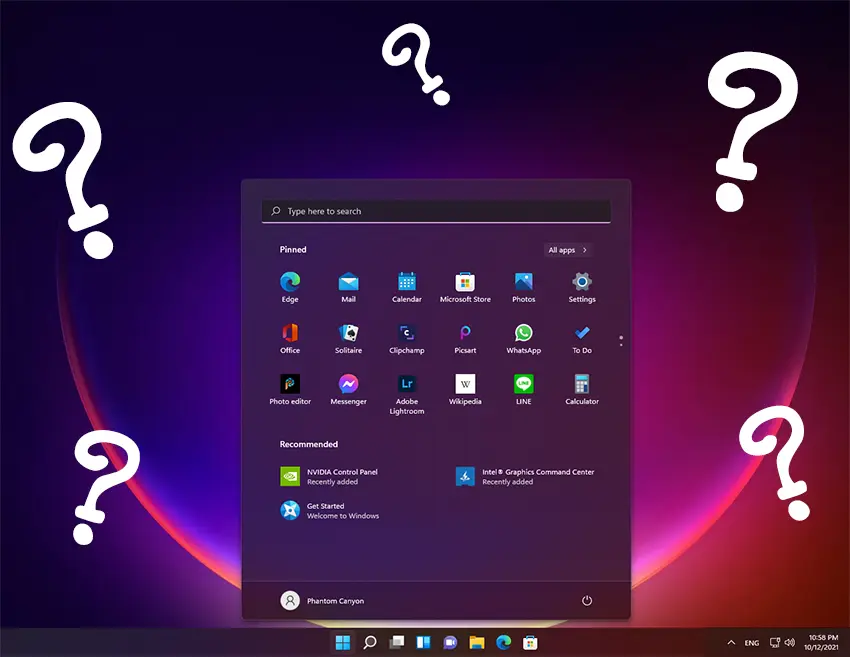
Had a couple of calls about folks not being able to make a shortcut as easily in Windows 11 as it was in 10 or 7. Now that a lot of “Apps” are being delivered via Microsoft Store, the old “Right Click” and send shortcut to desktop does not work for these and other built-in Windows apps. Some you can still use the right click option of “Open File Location”. With this, you can make a shortcut from there. However, that option is also being phased out. This leaves us shortcut junkies without a desktop full of icons!
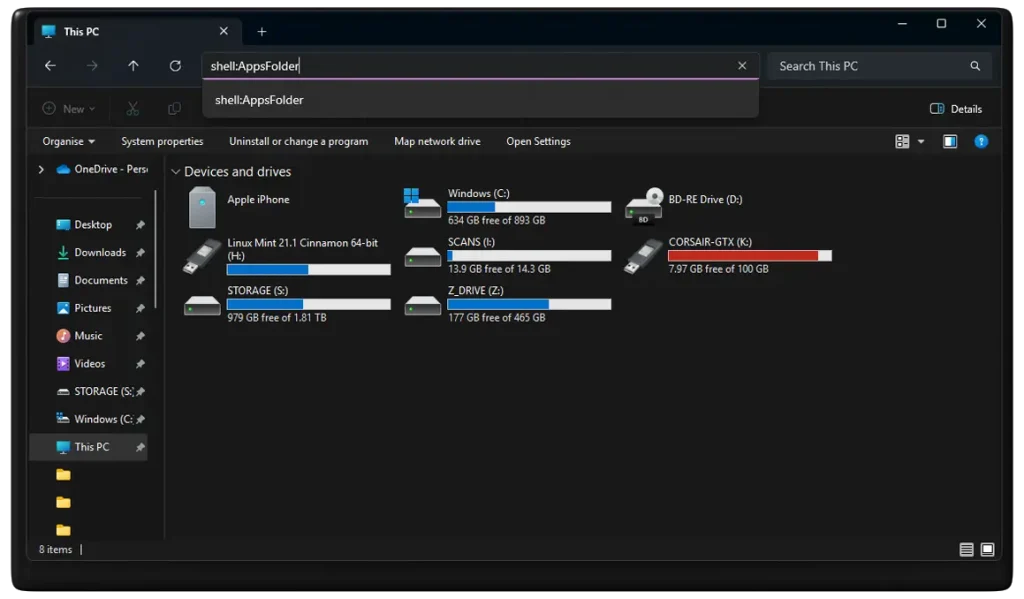
There’s a couple of easy ways to access the main Applications folder in 11, where everything is hiding. Open “File Explorer”, “Computer” or any folder on your pc and type shell:AppsFolder in the address bar & hit enter.
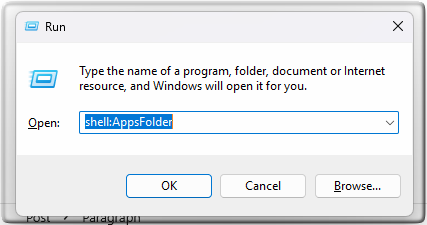
Or… Hold down the Windows key+R then type shell:AppsFolder into the Run window and click Ok. Then you will be able to make a shortcut for any program on your PC.
How to Create a Shell:AppsFolder Shortcut :
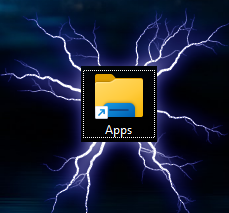
You can also create a Shell:AppsFolder shortcut to easily open the Applications folder to view all apps on your Windows 10/11 computer. Right-click on the Desktop and select New -> Shortcut. In the Create Shortcut window, type Explorer Shell:AppsFolder and click Next. Type a name for the shortcut like Apps or Applications and click Finish. This will create a shortcut for the Windows Applications folder. Then you can double-click on the new shortcut to open the Applications folder to view all apps in your system.
For more computer services, pop in to see us at Frolic House ( between Newtown Medical Practice and Newtown Driving Test Centre )| Call 01686 610 106 | Message 0783 222 7823