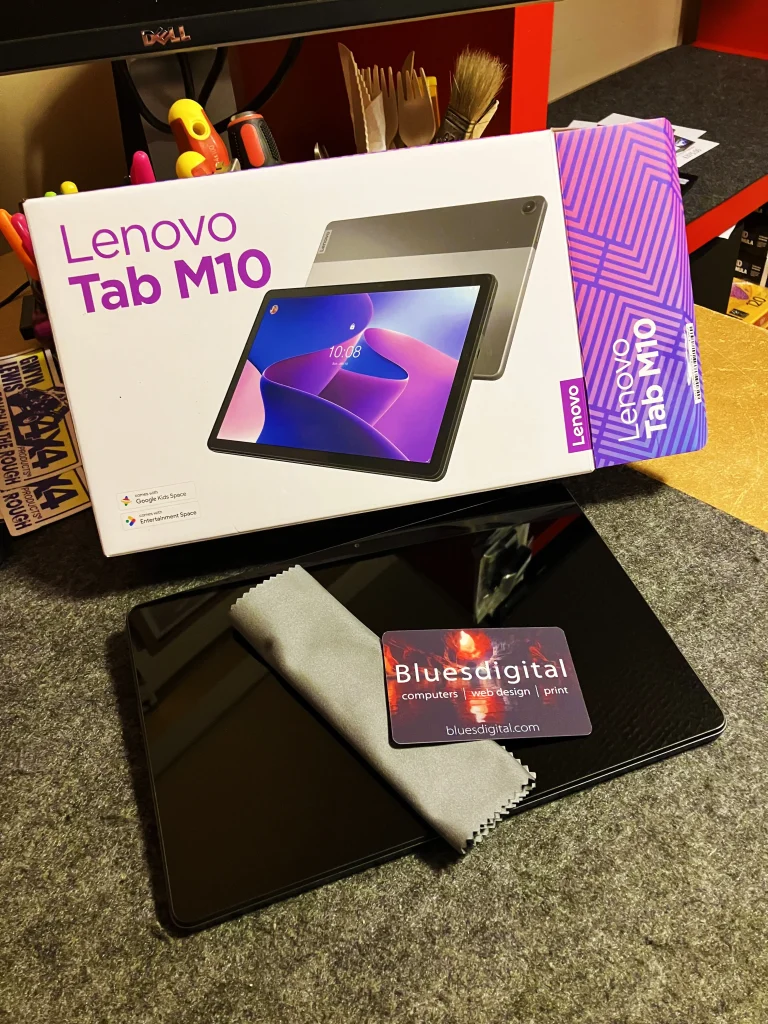
The Lenovo Tab M10 is a solid, reliable tablet – easy to use, good value, and ideal for everyday tasks like emails, browsing, streaming and video calls.
Recently, a lucky recipient received a Lenovo Tab M10 as a gift — what a great present to get! Tablets like this often find new homes, whether they’re brand new, pre-loved, or passed on from someone else.
What was the issue?
The tablet still had the previous user’s account signed in. When the new owner switched it on, it showed emails, apps, and other personal content. This can happen easily when someone sets up a device and then later gives it as a gift — it’s completely normal, and nothing that can’t be fixed.
The fix 💡
The advice was straightforward:
“Take it to Darren at Bluesdigital, he’s awesome and won’t rip you off.” – Thanks!!!
We carried out a full reset, removed the existing account, and set the Lenovo Tab M10 up cleanly for its new owner – secure, private, and ready to use ✔️
Why the Lenovo Tab M10 is a great gift 📱🎁
The Lenovo Tab M10 makes a really good gift:
Clear, bright display
Easy to use for all ages
Ideal for emails, YouTube, Zoom and web browsing
Lightweight and good value
Whether fresh out of the box or passed on, a proper setup is just around the corner.
🚨 Step 1: The “Save My Work” Trick (Try this first!)
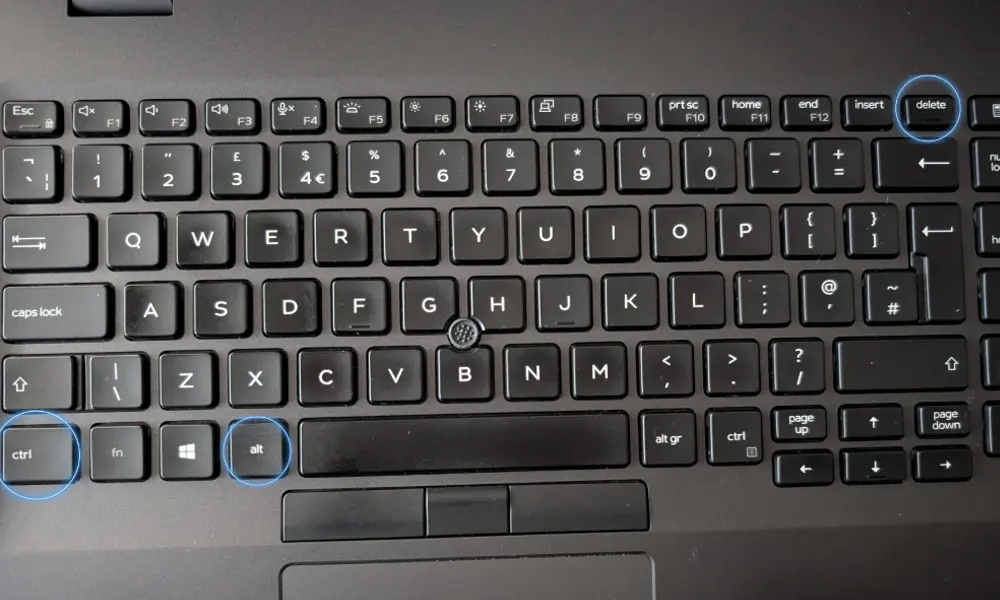
Before you force the power off and lose what you’re working on, try this “secret” Windows handshake. It resets your graphics driver without closing your programs:
Press Windows+Ctrl+Shift+B all at once.
Your screen will flicker and you’ll hear a beep.
The Result: If it was a display glitch, your laptop will “wake up” instantly. Save your work immediately!
If the keyboard shortcut didn’t help and the screen is still unresponsive, you’ll need to perform a hard reset:
This may look different for your laptop
Hold the Power Button: Press and keep it held down firmly.
Count to 15: Do not let go until the screen goes completely black and the fans stop.
Restart: Wait about 30 seconds to let the hardware “rest,” then press the power button normally to turn it back on.
Still having trouble? If your laptop freezes again the moment you start working, it might be a sign of a deeper issue. Give us a shout for a professional check-up 01686 610 106 | 0783 222 7823
Hello!
If you’ve just used the steps above—take a deep breath. We know how stressful it is when your technology locks up in the middle of a busy day. Whether you’re a student, a local business owner, or just browsing at home in Newtown, a frozen computer is a huge frustration.
Now that you’re back up and running, let’s look at why this happens and how to stop it from becoming a habit.
Why does my laptop keep freezing?
Think of your laptop like a busy motorway. Sometimes, there is just too much traffic for the “brain” (the CPU) to handle, and everything grinds to a halt. Common causes include:
Overloaded Memory: Having too many high-power apps or browser tabs open at once.
Hidden Updates: Windows might be trying to install a large update in the background.
Dust & Heat: If your laptop feels hot, dust inside the fans might be causing the system to “throttle” and freeze to prevent damage.
When should I be worried?
A one-off freeze isn’t usually a disaster. However, if you are holding down that power button every few days, your laptop is trying to tell you something is wrong.
At Bluesdigital, we specialise in computer services and getting to the root of the problem. We are experts in:
System Speed-ups: Cleaning out software “junk” that slows you down.
Internal Health Checks: Checking your hard drive and RAM for errors.
Cooling Service: Cleaning out dust and improving airflow to stop overheating.
Microsoft Office, Google Docs (offline), Adobe apps, etc., all have auto-save options. Turn them on.
Even if the laptop locks up, most recent changes are already saved.
Use Task Manager Shortcuts
If you notice your laptop starting to freeze or become unresponsive, try Ctrl+Shift+Esc to open Task Manager.
Sometimes you can kill the offending program before a full freeze happens, saving the rest of your work.
Quick Backup Hack
Keep a cloud folder (OneDrive, Google Drive, Dropbox) syncing your important files.
Even if Step 2 (hard shutdown) becomes necessary, your files are backed up automatically.
Lighten the Load
Close heavy programs you aren’t using, especially browsers with lots of tabs.
A laptop struggling with memory often freezes; reducing active apps helps prevent it.
Keep Drivers & Windows Updated
Many freezes come from old graphics drivers or OS bugs.
A little maintenance goes a long way.
Visit Bluesdigital in Newtown
Don’t wait for the next “big freeze” to lose your important files. Bring your laptop into our Newtown shop, and we’ll ensure it’s as fast and reliable as it should be.
For more computer services, pop in to see us at Frolic House ( between Newtown Medical Practice and Newtown Driving Test Centre )| Call 01686 610 106 | Message 0783 222 7823
When your computer starts acting up — whether it’s the dreaded blue screen of death, a painful slowdown, or a virus that won’t go away — the first thing you feel is stress. The second thing? Worry about paying for a repair that might not even be possible.
We’ve all heard the stories: being charged a diagnostic fee just to be told the computer is a lost cause. At Bluesdigital, we don’t think that’s how a local business should treat its neighbours. That’s why we’ve built our reputation on a simple promise:
You’ll find us right in the heart of Newtown on Frolic Street, next to the Newtown Medical Centre and just a few doors across from the Driving Test Centre. Whether you’re popping in on purpose or passing through town, we’re perfectly placed for an easy drop-off.
What “No Fix, No Fee” Means for You
It means exactly what it says. If you bring your device to us and we can’t resolve the software issue, fix the system fault, or get your hardware running properly again, you don’t owe us a penny.
We leave cracked phone and laptop screens to others — instead, we focus on the brains of your machine:
Performance boosts – Turning a “slow” PC into a fast, usable one
Virus & malware removal – Cleaning infections and securing your data
System crashes – Fixing boot loops, freezes, and software conflicts
Hardware upgrades – SSDs and RAM installs to breathe new life into older machines
Why Bluesdigital Does It Differently
Honesty in Powys Newtown is a close-knit community, and we value our neighbours’ trust. We don’t charge for a repair that doesn’t work — it’s as simple as that.
Confidence in our skills We offer No Fix, No Fee because we know our stuff. From deep-level system repairs to custom websites and high-quality printing, we take pride in delivering real results.
Risk-free tech support We want local residents and small businesses to feel comfortable asking for help early — without worrying about hidden costs or wasted money.
Frequently Asked Questions About Our No Fix, No Fee Service
What counts as a “fix”?
A fix means we’ve successfully resolved the specific fault you reported when you dropped off your device. Whether that’s getting a slow PC running properly again, removing a stubborn virus, or solving a software conflict, if the original problem is sorted, the repair counts as a success.
Is there really no charge if my computer can’t be repaired?
Yes — really. If we find your system is beyond economical repair, or we’re unable to resolve the software issue, you won’t be charged for our time. We believe you should only pay for results, not bad news.
Do you repair cracked laptop screens?
YES, we can replace cracked or broken laptop screens. We also specialise in system-level support, including performance optimisation, virus and malware removal, data recovery, and hardware upgrades such as SSDs and RAM.
Do I need an appointment to drop off my PC on Frolic Street?
No appointment needed — just pop in when it suits you. If you’d like to phone, message, or book ahead to let us know you’re on the way, you’re more than welcome to, but it’s not essential.
Does “No Fix, No Fee” apply to business clients?
Yes, it does. We offer the same risk-free guarantee to local Newtown businesses and home-office users. If we can’t get your work machine back up and running, there’s no service fee.
Get Your PC Fixed – No Fix No Fee Computer Repair in Newtown We’re right next to the Driving Test Centre on Frolic Street. Phone: 01686 610106 | 0783 222 7823 Shop Hours: 9.30 am – 5.30 pm Monday – Friday | Message outside of these hours and we will be ready for your visit.
Why Is My Laptop Slow? (And Why a Windows Reinstall Often Fixes It)
If you’ve ever asked “Why is my laptop slow?”, you’re not alone. It’s one of the most common questions we get at our computer repair shop in Newtown, Powys. There are several reasons a laptop becomes sluggish, but one of the quickest and most reliable fixes is often a clean Windows reinstall.
In this article, “Windows” refers to the Microsoft Windows operating system on laptops and PCs, not physical window installation.
Here’s what might be happening — and how a reinstall brings your computer back to life.
Common Reasons Your Laptop Runs Slowly
1. Too Many Startup Programmes
Some apps launch every time you start your laptop, using up RAM — the short-term memory your computer needs to work quickly. If the RAM is full before you’ve opened anything, everything slows down.
2. A Full or Ageing Storage Drive
If your hard drive (HDD) is old or nearly full, performance will drop. Traditional HDDs slow with age, while modern SSDs (Solid-State Drives) are far faster. If you’re still on an HDD, consider upgrading.
3. Malware or Adware
Unwanted software can run in the background, stealing processing power and causing random freezing or pop-ups. Even after a virus scan, hidden leftovers can remain.
4. Old Drivers or Missed Windows Updates
Drivers let your hardware communicate with Windows. Outdated or corrupted drivers can cause lag, crashes, or hardware issues.
Why Your Laptop Often Needs a Windows Reinstall
Even well-maintained computers collect clutter over time. A Windows reinstall resets everything to clean, fast, and fresh.
As Windows ages, it builds up leftover files, broken registry entries, old system settings, and fragments of uninstalled programmes. Windows has to process all this clutter, slowing your laptop down. A reinstall wipes it clean.
2. It Replaces Corrupted System Files
Laptops slow down when key Windows files become damaged. A clean reinstall restores everything to factory condition.
3. It Clears Hidden Malware and Bloatware
Even after a virus scan, trackers, adware, pop-up scripts, and browser hijackers can remain. A reinstall deletes everything — even the stuff antivirus programmes miss.
4. It Resets Drivers Properly
Driver conflicts cause lag, freezing, Wi-Fi issues, and crashes. A reinstall replaces all drivers with the correct versions.
5. It Stops Useless Background Services
Over time, apps install background processes you never see. Many do nothing useful. A reinstall removes them, freeing up CPU and RAM.
A Real Example From Bluesdigital – Computer Repair Shop
Just last week, a customer from Newtown brought in a laptop that was taking six minutes to start up! They’d already tried removing old apps, running antivirus scans, and even “speed-up tools,” but nothing worked.
We performed a clean Windows reinstall, and the difference was incredible. The laptop now boots in under 20 seconds, apps open instantly, and the fan is quiet.
This kind of transformation is exactly why we recommend a reinstall when laptops get slow — it’s like giving your computer a fresh start.
Signs You Probably Need a Windows Reinstall
Slow startup times
Apps freezing or randomly closing
Loud fan noise even when idle
You’ve tried cleaning or uninstalling apps with no improvement
The laptop struggles with simple tasks
Lots of old files and forgotten downloads
Frequent errors or blue screens
If this sounds familiar, a reinstall is usually the fastest fix.
What You’ll Notice After a Clean Reinstall
Faster boot times
Smoother performance
Longer battery life
Fewer crashes
More available storage
A laptop that feels almost new again
FAQ: Fixing a Slow Laptop
Why is my laptop slow all of a sudden? Sudden slowdowns are often caused by Windows updates, malware, or a failing hard drive.
Will a Windows reinstall delete my files? A clean reinstall resets everything. We always offer full data backup before we start.
How long does a reinstall take? Usually 1–2 hours, depending on updates and driver installation.
Do I need more RAM? If your laptop has 4GB RAM, upgrading to 8GB or 16GB can help — but a reinstall should come first.
Is it worth reinstalling Windows on an old laptop? Yes. Even older machines often feel dramatically faster after a clean reinstall.
Serving Newtown, Powys and Surrounding Areas
If your laptop or PC is running slowly and you live in Newtown, Powys, or nearby areas such as Welshpool, Llanidloes, Caersws, or Montgomery, we can help.
If a clean Windows reinstall is the right solution, we’ll back up your data, reinstall Windows properly, and get your computer running fast again.
We also offer:
✔ Virus and malware removal ✔ SSD upgrades ✔ Full diagnostics ✔ Data backup and recovery
Bring your laptop to our workshop today — or contact us to book a repair. Can’t get to us? Check out our pick-up and drop-off service 🙂
I’ve had three calls & a couple of messages about this very topic today. It’s only just after 1pm at time of writing!
Thinking about giving your old laptop or desktop a new lease on life with Windows 11? It’s possible—but with a few important caveats.
System Requirements Matter
Windows 11 has stricter “OFFICIAL” hardware requirements than previous versions. At minimum, it requires:
A 1GHz or faster processor with 2 or more cores (64-bit) (We Recommend: Intel i5+ or AMD Ryzen 5+)
4GB of RAM (We Recommend: 8gb min, preferred 12-16gb+)
64GB of storage (We Recommend: SSD not older mechanical drives, 128gb absolute min, preferred 240gb+)
UEFI firmware with Secure Boot
TPM version 2.0
A DirectX 12-compatible graphics card
For many older pc’s — especially those made before 2017—the TPM 2.0 and Secure Boot requirements can be deal breakers. If your device doesn’t meet these, Windows 11 will not install the official way.
Workarounds Exist
Microsoft allows a workaround for unsupported hardware. Though it’s not recommended for basic users, you can create a bootable USB using tools like Rufus. Alternatively, you can modify the installation media to skip TPM and CPU checks. But be aware: running Windows 11 on unsupported hardware MAY prevent updates and lead to stability or security issues. However, this has never been seen in previous versions of Windows. It is easily mitigated by using a DECENT anti-virus program to look after your interests.
Should You Upgrade?
If your old laptop meets the specs—or you’re tech-savvy and want to experiment—it can be a worthwhile upgrade. Otherwise, you might consider sticking with Windows 10 (OFFICIALLY supported until October 2025). In reality, it is perfectly safe for the average user for at least another 3-4 years, with good security in place.
Bottom Line
Yes, you can put Windows 11 on an old computer. However, whether you should depends on your device’s specs, your comfort with tech, and what you expect from the upgrade. Please don’t let the scaremonger tactics & misinformation force you into a possibly unnecessary purchase. Creating more tech e-waste/landfill for a perfectly viable & sustainable machine is avoidable. If you want to get your machine checked out for upgradeability, give us a shout. Alternatively, bring your computer in for a FREE diagnosis & honest opinion.
For more computer services, pop in to see us at Frolic House ( between Newtown Medical Practice and Driving Test Centre ) | Call 01686 610 106 | Message 0783 222 7823
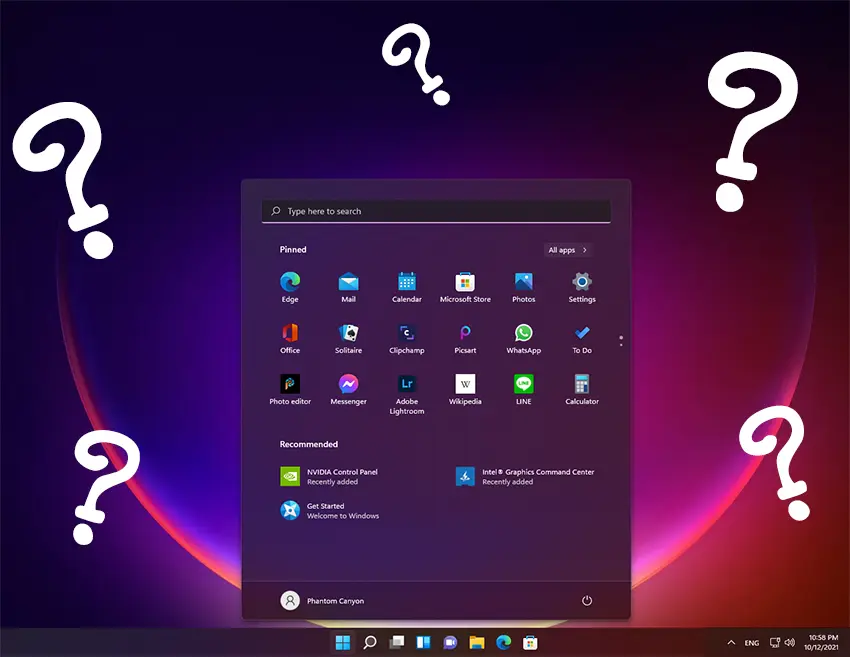
Had a couple of calls about folks not being able to make a shortcut as easily in Windows 11 as it was in 10 or 7. Now that a lot of “Apps” are being delivered via Microsoft Store, the old “Right Click” and send shortcut to desktop does not work for these and other built-in Windows apps. Some you can still use the right click option of “Open File Location”. With this, you can make a shortcut from there. However, that option is also being phased out. This leaves us shortcut junkies without a desktop full of icons!
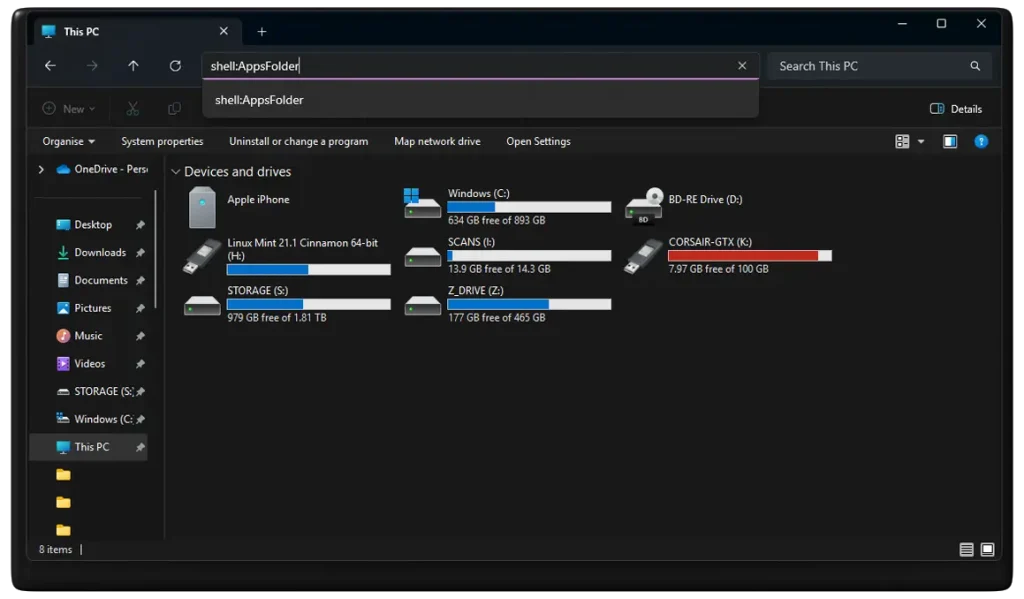
There’s a couple of easy ways to access the main Applications folder in 11, where everything is hiding. Open “File Explorer”, “Computer” or any folder on your pc and type shell:AppsFolder in the address bar & hit enter.
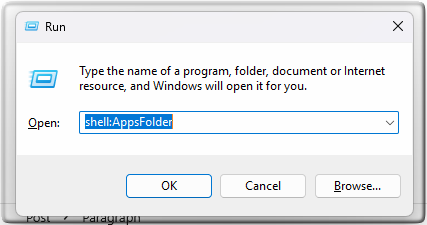
Or… Hold down the Windows key+R then type shell:AppsFolder into the Run window and click Ok. Then you will be able to make a shortcut for any program on your PC.
How to Create a Shell:AppsFolder Shortcut :
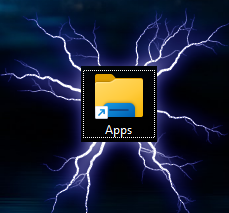
You can also create a Shell:AppsFolder shortcut to easily open the Applications folder to view all apps on your Windows 10/11 computer. Right-click on the Desktop and select New -> Shortcut. In the Create Shortcut window, type Explorer Shell:AppsFolder and click Next. Type a name for the shortcut like Apps or Applications and click Finish. This will create a shortcut for the Windows Applications folder. Then you can double-click on the new shortcut to open the Applications folder to view all apps in your system.
For more computer services, pop in to see us at Frolic House ( between Newtown Medical Practice and Newtown Driving Test Centre )| Call 01686 610 106 | Message 0783 222 7823
As our lives become more digital, our computers (Yep, Mac’s Too) are prime targets for malicious software. Investing in a professional virus removal service is a smart move. Here’s why:
Protect Your Data and Privacy
Viruses can steal passwords, financial info, and personal files. We detect and eliminate these threats, keeping your data safe from harmful viruses.
Boost System Performance
Malware can slow your Computer, cause crashes, and disrupt functionality. Professional virus removal restores speed and reliability, ensuring your system is virus-free.
Prevent Future Infections
Our service can include protective software and guidance on safe browsing, reducing your risk of future attacks and helping maintain a virus-free environment.
Save Time and Money
DIY removal is risky and time-consuming. At Bluesdigital, we handle those pesky troublemakers efficiently, providing virus removal that saves you time and money.
Peace of Mind
With your Computer running smoothly and safely, thanks to effective virus removal, you can kick back and chill a little more.
Unlocking Potential: How Bluesdigital is Here to Help You Thrive
In today’s fast-paced digital landscape, having a reliable partner can make all the difference. At Bluesdigital, we pride ourselves on being that partner for businesses & individuals looking to enhance their online presence and drive growth. Our commitment to helping our clients succeed is at the core of everything we do.
Tailored Solutions for Every Need
We understand that every client is unique, which is why we offer customized solutions that cater to your specific needs. Whether you’re looking for Computer Equipment, web development, digital marketing, or e-commerce solutions, We are dedicated to providing strategies that align with your goals. We take the time to listen and understand your challenges, ensuring that our solutions are not just effective but also relevant.
Expert Guidance and Support
Navigating the digital world can be overwhelming, but you don’t have to do it alone. We are here to guide you every step of the way. From initial consultations to ongoing support, we are committed to being a resource you can rely on. Our goal is to empower you with the tools and knowledge you need to make informed decisions and achieve lasting success.
Results-Driven Approach
At Bluesdigital, we believe in delivering results. Our data-driven strategies are designed to maximize your return on investment and help you reach your target audience effectively. We continuously analyse and optimize our efforts to ensure that you’re not just keeping up with the competition but staying ahead of it.
Need Proper Digital Business Support in Newtown?
Don’t let a dodgy website or outdated kit slow you down. At Bluesdigital, we’ve spent years helping locals turn tech headaches into growth. Whether you need a fresh e-commerce site or a fleet of reliable laptops, we provide the tools to help you thrive.
No jargon, just honest advice and results that speak for themselves.
Shout if you’re ready to start.01686 610 106 | 0783 222 7823Frolic House, Newtown